Collaboration
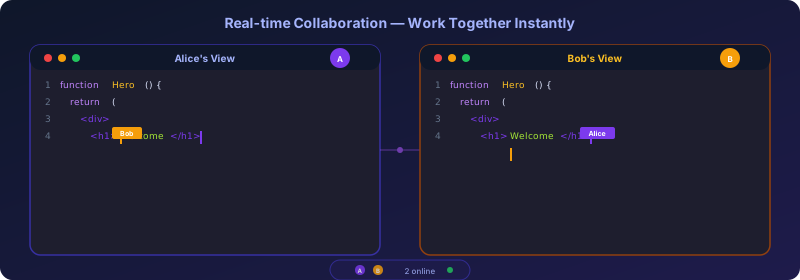
Multiple people can work in the same Doable project simultaneously, like Google Docs or Figma.
Inviting collaborators
Three options:
- Add to the workspace: Workspace Settings → Members → Invite. They join your workspace and see all workspace-visible projects.
- Share a single project: Editor → Share → Invite by email. Adds them to the workspace as a Viewer (or Member, your choice) and grants project access.
- Anyone-with-the-link: Editor → Share → Toggle. Generates a link with read or edit scope. Useful for client previews.
What you see during collaboration
- Cursor pills: each user gets a colored cursor in the code editor with their name.
- Selection highlights: see what your teammate is selecting.
- Active-now badges: the workspace dashboard shows which projects have someone in them.
- Chat is shared: every member of the chat sees streaming AI responses live. Useful for "look at this" moments.
- Design comments: pin comments directly on the preview canvas for feedback (see below).
Team chat
Every project has a built-in team chat. Open it by clicking the online users pill in the editor header.
- Messages are persisted: you'll see history when you come back.
- Threaded replies: reply to any message to keep conversations organized.
- @mentions: tag collaborators by name.
- Typing indicators: see who is composing a message.
- Chat messages sync in real time through the WebSocket connection.
Design comments
When multiple people work on a design simultaneously, you can leave Figma-style comments pinned directly on the visual preview canvas.
Adding a comment
- Enter Design View (click the paintbrush icon or the "Design View" button).
- Click the Comment button in the top-right corner of the preview.
- Your cursor changes to a crosshair; click anywhere on the preview to place your comment.
- Type your message and press Comment (or
Enter).
A numbered pin appears at that position, visible to everyone in the project.
Threads & replies
Click any pin to open the comment thread:
- Reply: add context without creating a new pin.
- Resolve (✓): mark the feedback as addressed. Resolved comments are hidden by default.
- Show resolved: toggle the eye icon to see/hide resolved comments.
- Delete: remove your own comments or replies.
Real-time sync
Design comments sync instantly via WebSocket: when one collaborator places a comment, everyone else sees the pin appear in real time. Resolved/deleted actions also broadcast immediately.
How positions work
Comment positions are stored as percentages of the preview canvas dimensions, so they stay correct across different screen sizes and device modes (desktop/tablet/mobile).
Conflict resolution
Doable uses Yjs CRDTs for collaborative editing: every operation is conflict-free by construction. Two users typing at the same position get a deterministic, well-defined merge. No locks, no "someone else is editing" modal.
The AI counts as a third collaborator. If you and the AI both touch the same lines simultaneously, the merge is well-defined (you'll see your characters interleaved). This is extremely rare in practice.
Live AI updates
When the agent edits a file, every collaborator sees the change immediately. This works because:
- The AI writes the file via the API.
- The API broadcasts the new content into the project's Yjs room.
- Every connected editor receives it and updates Monaco.
So when you ask the agent to “rename Foo to Bar”, your teammates watch the rename happen across files in real time.
Collaborative Design View
When two or more people are in Design View simultaneously:
- Remote cursors: you see each collaborator's cursor moving on the canvas, labeled with their name and a unique color.
- Element locking: if Alice selects a
<Hero>element, Bob sees her colored selection outline and cannot select that same element until she deselects. This prevents conflicting edits to the same element. - Live style changes: when Alice adjusts padding via the property panel, Bob sees the change appear on the preview in real time.
- Selection overlays: colored outlines show which elements each collaborator is working on.
These features combine with design comments to create a Figma-like collaborative design experience.
Presence-aware features
- The chat shows a "Sara is typing…" indicator.
- The history view shows who made which commit.
- The audit log records who triggered which AI action.
Disconnecting & reconnecting
Network drops are seamless:
- The editor switches to offline mode (a discrete pill at the top).
- You keep editing locally.
- When the connection comes back, your edits sync and the room state catches up.
Privacy considerations
If your project has visibility = public, anyone with the URL can view the live preview, but the editor is still gated by workspace membership unless you've explicitly shared the link.
Disabling collaboration
If you only ever expect single-user use of your Doable instance:
- Skip running the
services/wsserver. - Set
NEXT_PUBLIC_WS_URL=to empty. - The editor falls back to single-player mode.
For multi-user instances, services/ws is required.