Your First Project
A 5-minute walkthrough so you know what every screen does.
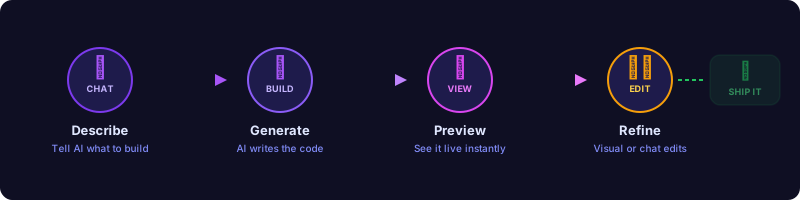
1. Sign up
Open the app (http://localhost:3000 or your domain) and click Sign up.
- Email + password works out of the box.
- GitHub or Google OAuth works if you set the corresponding
*_CLIENT_ID/*_CLIENT_SECRET(see Environment Variables).
You land in your personal workspace. Workspaces hold projects, members, billing, AI settings, integrations, and credits.
2. Create a project
From the dashboard, click New project. You have three ways to start:
- Describe what you want: “A todo app with categories and a dark theme”.
Doable picks the right template and scaffolds it. - Start from a template: Blank, Landing page, Blog, Portfolio, SaaS dashboard, E-commerce store, Todo app.
- Import from GitHub (if you connected your GitHub account).
Templates live in services/api/src/templates/definitions/. Each template generates a Vite + React + Tailwind starter that runs in seconds.
3. The editor
Once the project opens, the layout looks like this:
┌──────────────┬─────────────────────────────┬───────────────┐
│              │                             │               │
│  File tree   │      Live preview /         │  Chat with AI │
│              │      Monaco code editor     │               │
│              │                             │               │
└──────────────┴─────────────────────────────┴───────────────┘
- File tree (left): every file in the project; click to open in the code view.
- Preview / Editor (center): toggle between the rendered preview iframe and the Monaco code editor.
- Chat (right): conversational AI interface. This is where most of the work happens.
4. Talk to the AI
Type something like:
“Add a contact form below the hero with name, email, and message fields. Validate the email.”
You will see:
- The AI streams its plan in the chat (assistant.message_delta events).
- Tool calls appear inline (file edits, package installs, shell commands), each one expandable.
- The preview reloads automatically as files change (Vite HMR).
- When the AI is done it summarizes what changed.
Behind the scenes:
- Your message goes to the API at
POST /chat/...(see Chat API). - The API hands it to
@doable/docore, which spawns the GitHub Copilot CLI (or other configured provider). - File edits, terminal commands, and HTTP fetches are all sandboxed via
@doable/dovaultpolicies (see Sandboxing). - Streaming events flow back over Server-Sent Events to the chat panel.
5. Visual edit
Click the cursor icon in the toolbar, then click any element in the preview. A floating panel lets you change text, color, padding, etc., and writes the change directly to the source file via the AST-based direct save path (no AI tokens used).
The bridge that makes this possible is injected into the preview iframe by the API: see visual-edit-bridge-inline.ts.
6. Real-time collaboration
Invite a teammate from the project menu. Both of you see each other's cursor, selection, and edits as they happen, powered by Yjs CRDT over the WebSocket service. See Real-time Collaboration.
7. Publish
Click Publish. Doable builds the static site and deploys it to:
<your-project>.doable.me(or yourDOABLE_DOMAIN), or- a custom domain you configure.
Caddy serves the site. Cloudflare Tunnel handles routing if you used deployment/server-setup.sh.
What's next?
- Learn the editor in detail.
- Customize the AI provider, modes, and tools in Workspace settings → AI.
- Connect a GitHub repo so your project syncs to a real Git repo.
- Read about the architecture to understand what just happened.